Show, don't guess
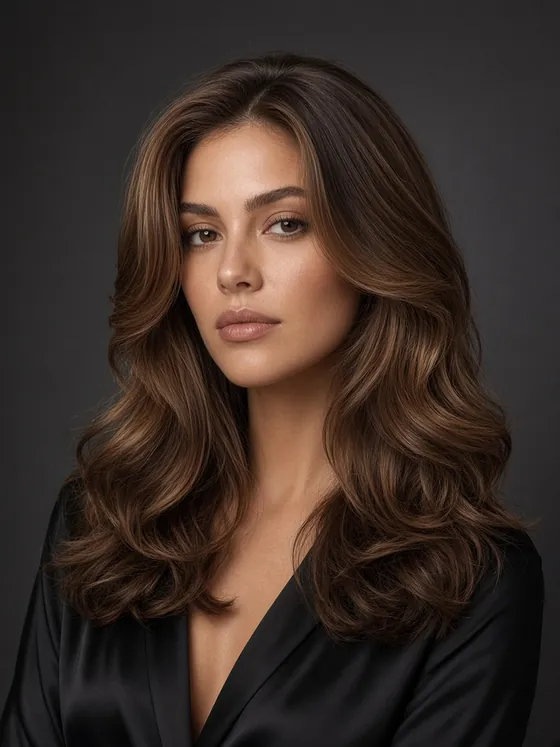
Clients see a preview of the look on their own photo — not a reference picture of someone else.
// Virtual try-on. Real you.
AI try-on for modern salons
Let clients see a new hairstyle or beard look on themselves before the scissors come out.
No credit card required.
Prefer to try a look yourself?
Already have an account? or
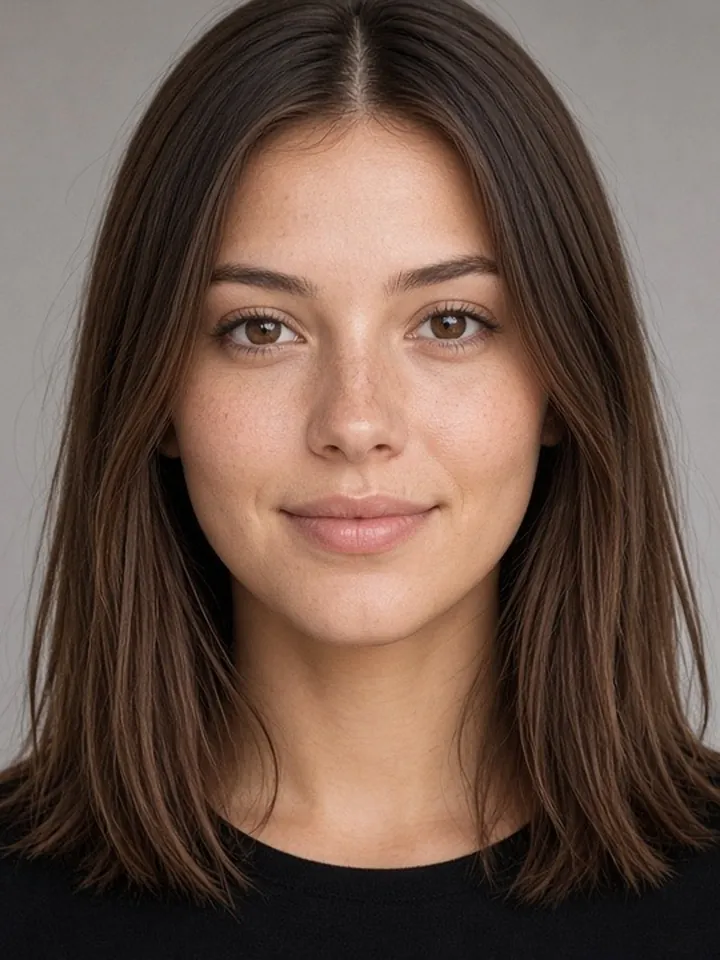
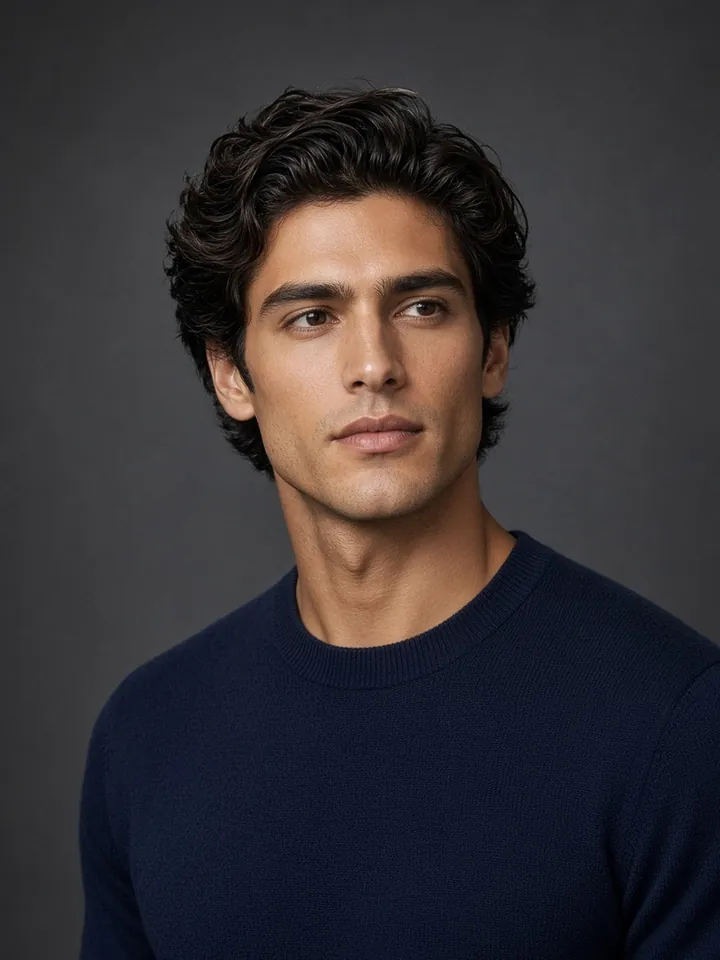 Before
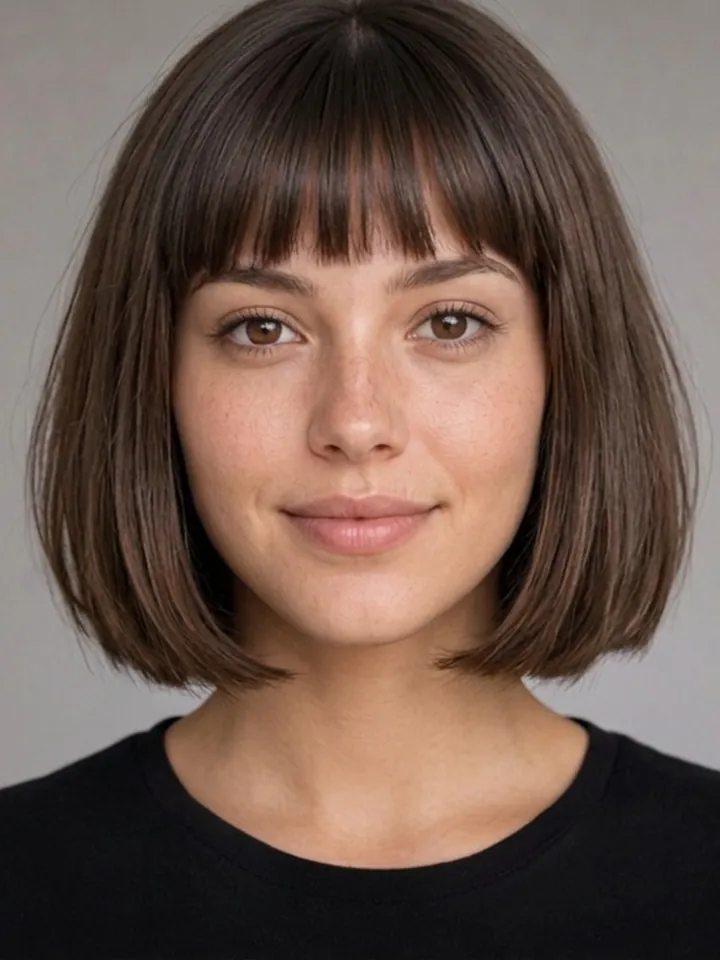

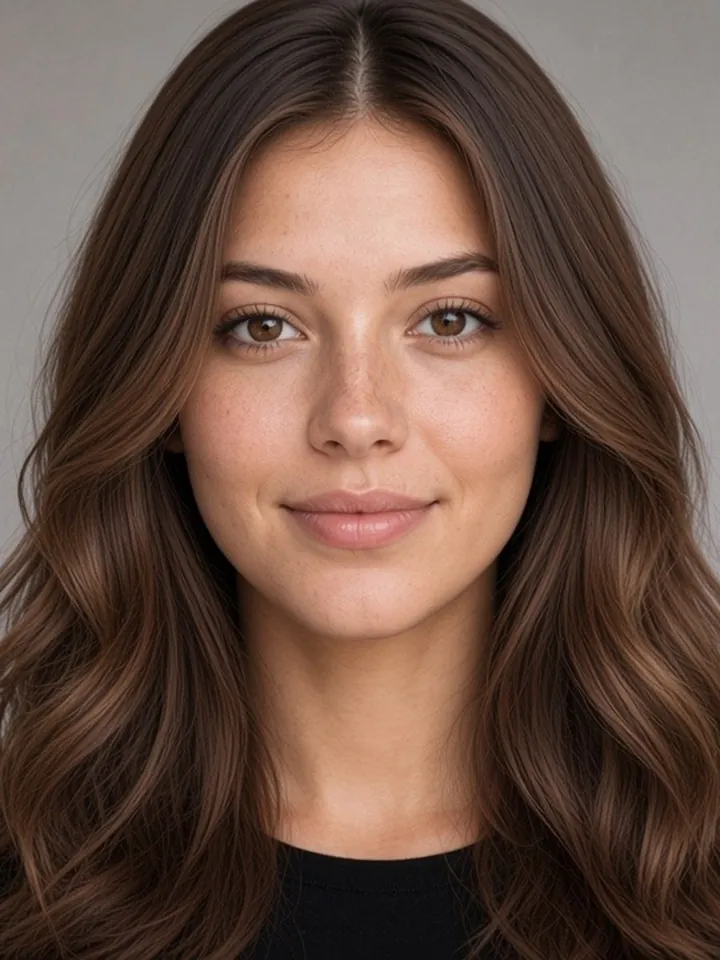
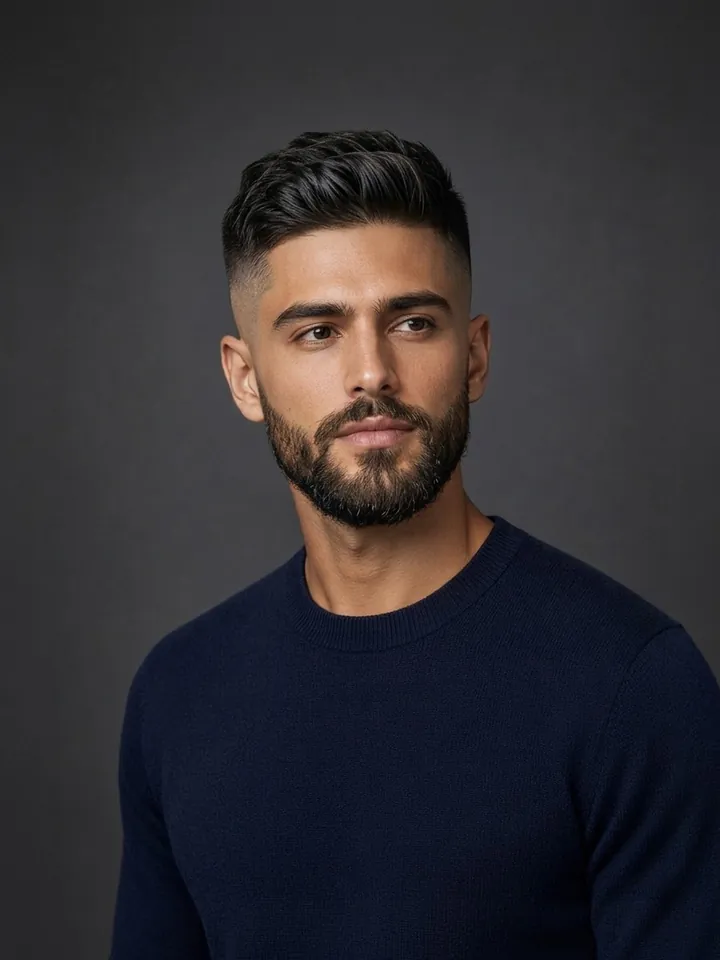 New look
Why BeautyVIA
Clients see a preview of the look on their own photo — not a reference picture of someone else.
Compare several options side by side and agree on a direction before the service starts.
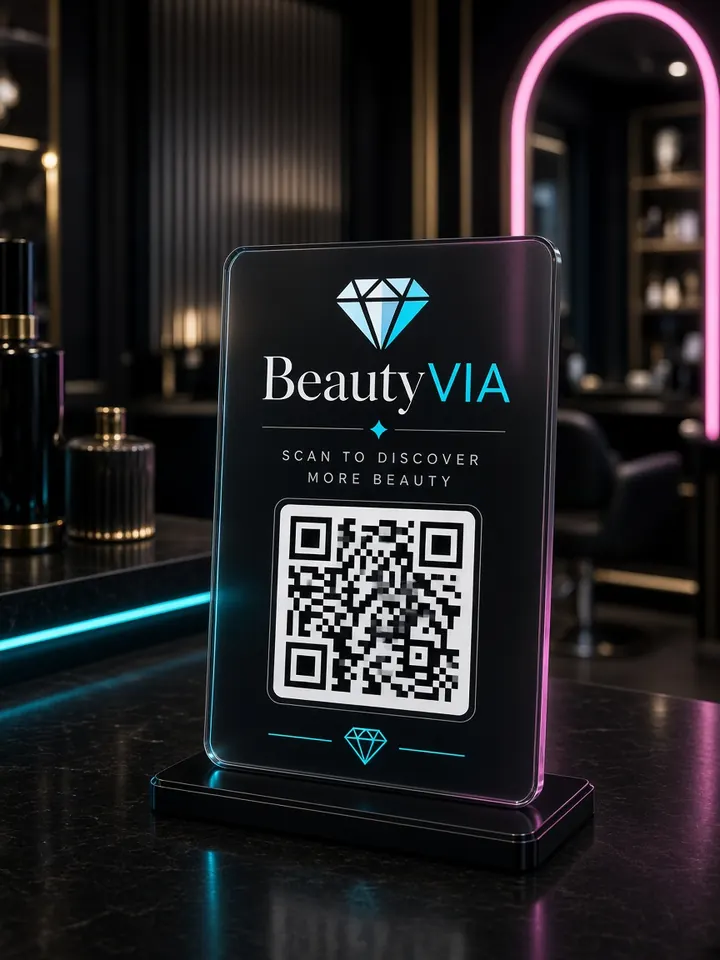
Guests open the try-on from your salon QR, with your salon name, profile and booking link.
How it works
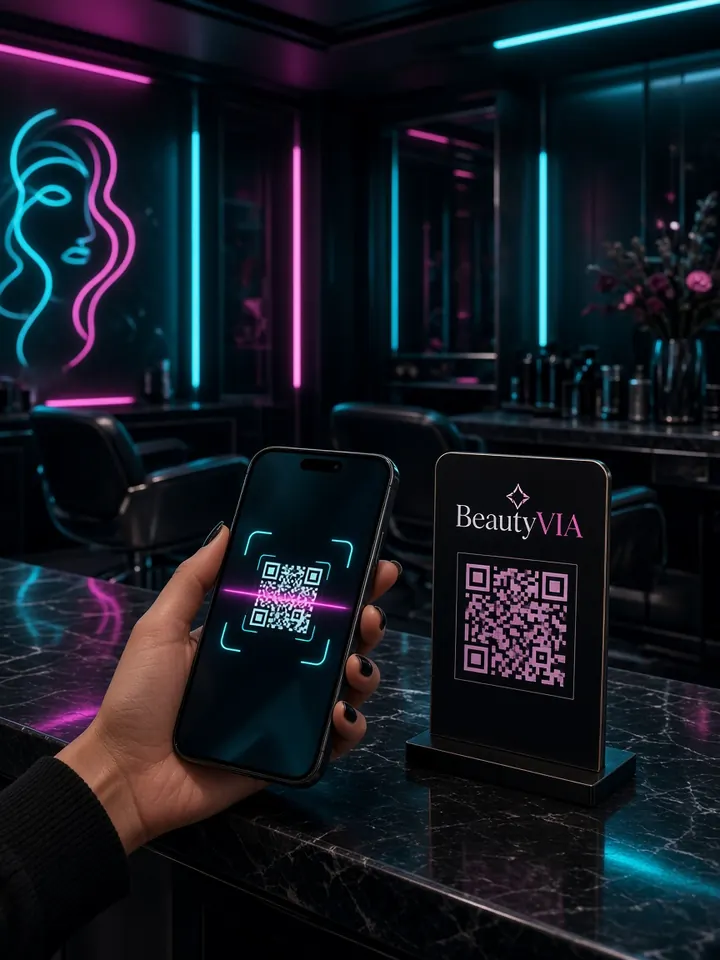
The client scans your salon QR code.
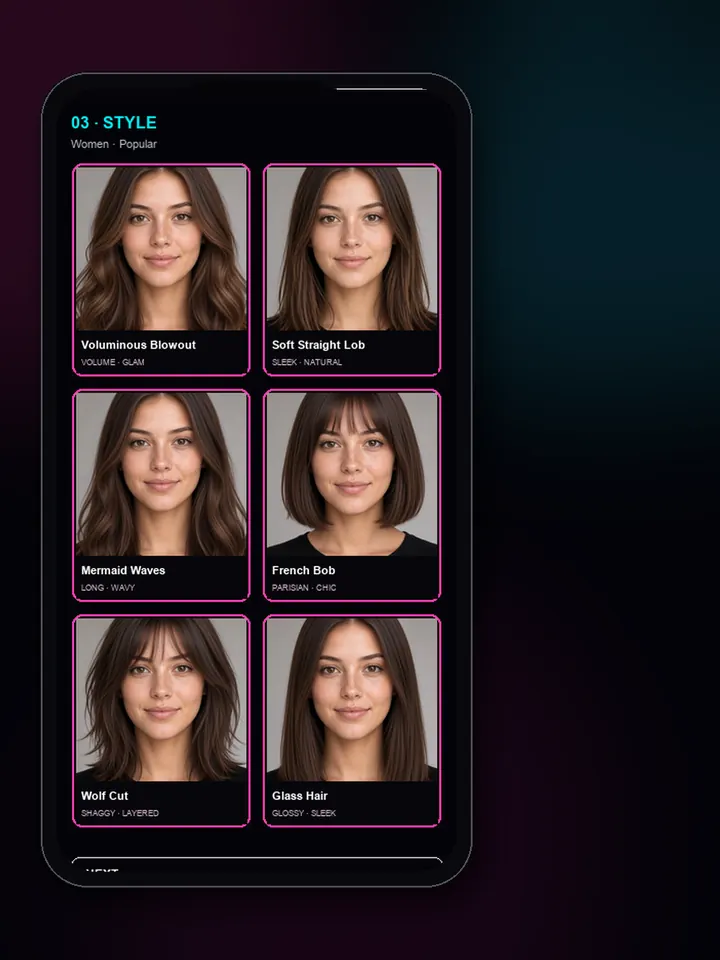
They upload or take a photo and try different looks.
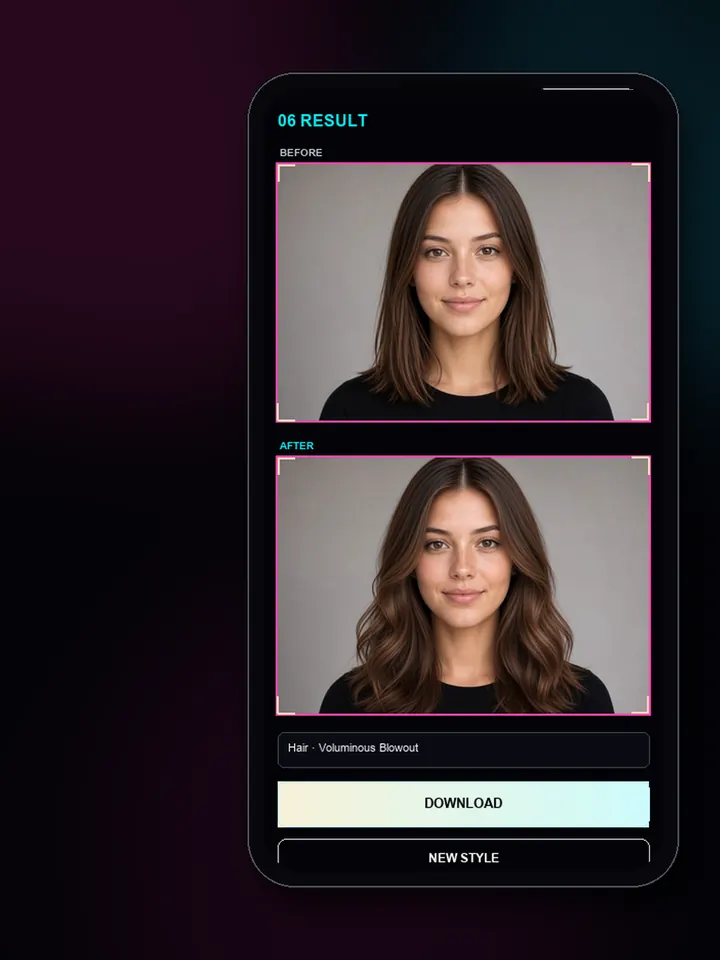
You and the client compare options together.
They can continue to your salon booking page.
Salon QR
One QR code opens BeautyVIA for your guests. Try-ons use your salon credits, within limits you set.
Samples
Each set starts from a single client photo. Pick a look to compare it with the original.
Before
New look
Before
New look
The difference
An inspiration photo shows a haircut on someone else. BeautyVIA shows a preview of the look on your client's own photo — so the conversation starts from something you can both see.
AI previews support the consultation. The final result always depends on hair type, texture and the stylist's work.
For salon teams
One live QR for your salon. Choose which modules guests see and the language of the guest page.
Guest try-ons use your salon balance, with a shared daily pool and tries per guest.
Your name, logo, cover and contacts shown to guests after they scan.
Hairstyles, beards, hair color and full looks — from an uploaded photo or the camera.
AI Style Assistant suggestions and a shared stylist login for your team.
Add your booking link — guests can open it right after a try-on.
See remaining credits, today's guest usage and recent try-ons in your salon cabinet.
Free BETA for selected salons
Try BeautyVIA with your salon and see how clients respond.
No credit card required.
FAQ
No. Guests open BeautyVIA from your salon QR and try looks without registering. Your account provides the credits.
You create a QR in your cabinet. Guests scan it, open your BeautyVIA page, upload a photo, and generate try-ons billed to your salon credits.
Guests do not pay through BeautyVIA. Try-ons use the salon owner’s credits (and guest limits you set).
Credits are used for AI generations. Higher image quality uses more credits (1K = 1, 2K = 2, 4K = 3).
Yes. Add your booking URL in the salon QR settings. Guests can open it after a try-on when that link is set.
A salon cabinet with your own QR code, a guest try-on page with your salon profile and booking link, credits for guest try-ons, guest limits, and a history of recent try-ons.
Yes on Partner plans. Starter shows your salon name on the frame; Business and Studio unlock custom branding and frame on/off.
During open BETA, new accounts get free beta credits. Paid Partner plans unlock after beta; unused credits from beta stay on the account when it moves to Free.
BeautyVIA — AI try-on for modern salons.